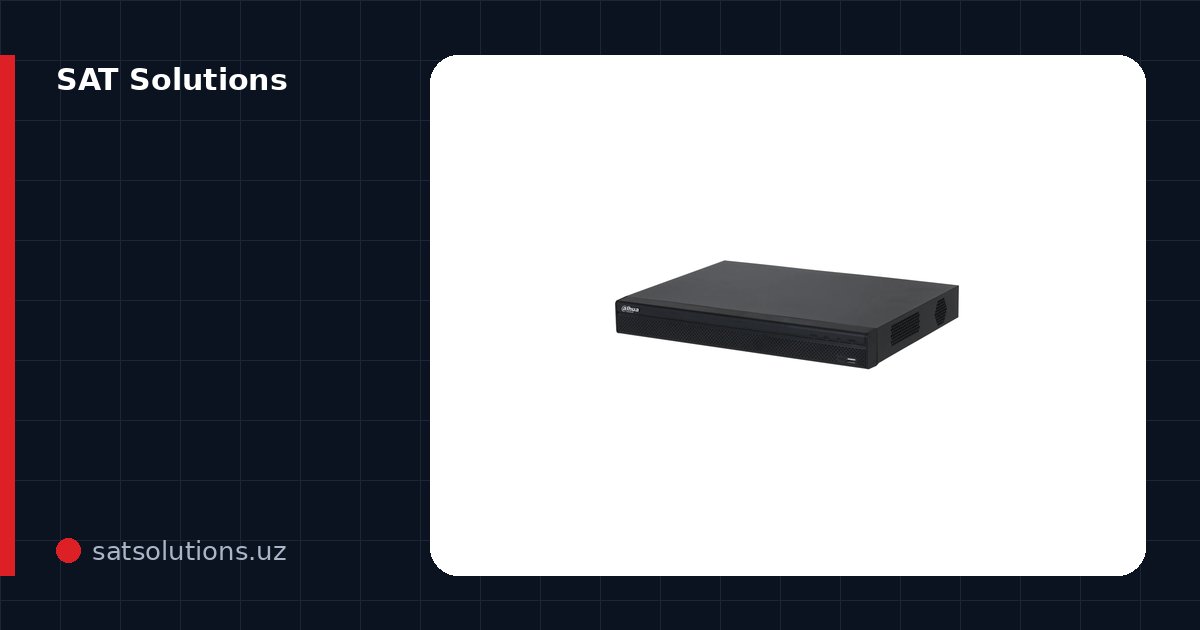
Dahua's apps
Dahua offers two free official programs for owners of CCTV systems. DMSS is the app for iPhone and Android: live video, playback, alarm notifications, and control of PTZ cameras and intercoms. SmartPSS Lite is the client for Windows and macOS: multi-screen view, playback and export of recordings for a security desk. Both work with Dahua recorders and IP cameras and connect to devices through the P2P cloud service without a static IP address.
Preparing the recorder: initialisation and network
A new Dahua device must be initialised before first use — set the admin password and, ideally, an email address for recovering it. This is done in the recorder's local menu, through the web interface, or in SmartPSS Lite itself. Then check the network settings: the recorder needs a correct gateway and DNS, otherwise it cannot reach the internet and P2P will not work.
How to enable P2P
In the recorder menu open Main Menu → Network → P2P (on some firmware the section is called Register or Easy4ip) and enable it. Within a minute the status should read Online, with a QR code containing the device serial number next to it — the app scans this code. If the status stays Offline, the cause is almost always no internet or a wrong DNS.
How to add the device to DMSS
Download DMSS from the App Store or Google Play, sign up or log in, tap "+" and scan the QR code from the P2P menu or the label on the device. The app fills in the serial number (SN); you only enter the device's username and password. If you are on the same network as the recorder, you can find it by LAN search or add it by IP address: Dahua uses port 37777 by default. Cameras connected to the recorder appear together with it.
SmartPSS Lite on a computer
Download SmartPSS Lite only from Dahua's official website. After installing, open Devices → Add: on the same network the recorder is found by auto search; remotely, add it by serial number via P2P or by IP address and port 37777. Then drag the cameras into the layout windows in Live View; recordings open in Playback, and the clip you need can be saved to the computer. If video stutters with many cameras, switch the view to the sub stream.
Common errors and what to do
"Device offline" — no internet, wrong DNS or P2P disabled. "Incorrect username or password" — after several failed attempts the account is locked for a while; wait and try again. "Device not found" on the same network — the computer and recorder are on different subnets. A forgotten admin password is reset through Dahua's official procedure: via the QR code in the recovery menu and the email set during initialisation; without access to that email — through a service centre.
SAT Solutions supplies Dahua recorders and cameras from stock in Tashkent and sets up remote access turnkey: initialisation, P2P, apps on the owners' phones, the client at the security desk and alarm notifications.
FAQ
Are DMSS and gDMSS the same?
DMSS is Dahua's current app; it replaced the earlier gDMSS (Android) and iDMSS (iPhone). Use DMSS for new installations.
Do I need a static IP to view Dahua cameras?
No. With P2P enabled the recorder connects to Dahua's cloud service on its own and the app finds it by serial number. A static IP is only needed for direct connection by address.
What is the difference between SmartPSS and SmartPSS Lite?
SmartPSS Lite is the current free version of the client for Windows and macOS; it is enough for viewing, playback and exporting recordings on a computer.
Installation works cost calculator
Set the number of points — the calculator lays out a site plan and shows the range from our standard price list. One minute, no phone calls.
Read also

Related services
Catalog on the topic