In short
- V380 Pro is free; download it only from the App Store or Google Play, as clones exist.
- V380 cameras work only with 2.4 GHz Wi-Fi; the camera hotspot method is the most reliable.
- A forgotten password or a new router is fixed by a Reset-button reset and a fresh setup.
- Recordings go to a microSD card, the cloud is a paid option, and family access is given via Share.
What V380 Pro is and where to download it
V380 Pro is the official app for the budget V380 line of Wi-Fi cameras: indoor, pan-tilt, outdoor, light-bulb cameras and multi-lens models. It lets you watch live video, talk through the camera's built-in speaker, receive motion alerts, browse recordings on the memory card and control rotation.
Download the app only from the App Store or Google Play by searching for “V380 Pro”. On Google Play the developer is listed as Guangzhou Hongshi Information Technology, the app has over 50 million installs, and its description openly warns about unofficial clones — check the developer name before installing. The app is free; it contains ads and in-app purchases, and extra services such as cloud storage are paid.
What to check before connecting
The key requirement is 2.4 GHz Wi-Fi. The module in V380 cameras works only in this band and cannot see 5 GHz networks. If your router broadcasts both bands under one name and the camera will not connect, create a separate 2.4 GHz network in the router settings. Guest and hidden networks will not work either, and the network name is best set in Latin letters without special characters. Use WPA2-PSK security.
Your phone should be connected to the same network you are pairing the camera with. On an iPhone with iOS 13 or later, allow the app location access “while using” — without it the app cannot read the Wi-Fi name. Set the camera up next to the router: the camera's own hotspot reaches about 10–15 metres, and once configured you can move the camera to its final spot.
How to add a camera via its hotspot (AP mode)
This is the most reliable method and the one the manufacturer recommends. Power on the camera and wait until it enters setup mode: a network named like MVxxxxxxxx (MV plus the camera ID) appears in your phone's Wi-Fi list, and many models announce it by voice.
Step by step: sign in, tap “+” in the top right corner, choose to add a Wi-Fi camera (or scan the QR code on the body) and pick the hotspot (AP hotspot) connection option. Select your home 2.4 GHz network and enter its password. The app will then ask you to connect the phone to the camera's MVxxxxxxxx network — do it in the phone's Wi-Fi settings and return to the app. The camera confirms the Wi-Fi connection by voice, the app shows that setup is complete, and you can name the camera.
Other methods: quick setup, device ID and cable
Quick setup (Wi-Fi smart link) works without switching the phone to the camera's network: you enter the Wi-Fi password in the app and the camera picks up the settings by itself. It is convenient, but with some routers it only works now and then — in that case go back to the hotspot method.
If the camera is already online — plugged into the router by cable or set up on another phone — add it by ID: the eight-digit number is printed on the label next to the QR code. Tap “+”, choose to add by ID and type the number or scan the code. When the phone and camera are on the same network, simply pull the device list down and the app finds the camera itself. A connected cable takes priority over Wi-Fi: unplug it to switch to wireless.
Camera password and factory reset
A new camera has no access password: the first time you open the video, the app asks you to set one. Do not skip this step, and choose a password that differs from your Wi-Fi and account passwords. The camera password and the app account password are different things: the first protects the device itself, the second protects your camera list.
If you forget the camera password, reset it with the Reset button — it may be on the body, under a cover or on the cable pigtail. According to the manufacturer, indoor models need the button held for about 7 seconds and outdoor models for about 10; your model's manual gives the exact figure. The camera then returns to factory settings and waits for setup: add it again and set a new password. The same reset is needed after replacing the router or changing the Wi-Fi name and password — the camera does not update the old settings on its own.
The camera shows “offline”: what to check
The device list shows each camera's status: online via the internet, online on the local network, or offline. If the camera is offline both locally and over the internet, power-cycle it, make sure the phone has internet access and the app has network permission. Turn off client isolation (AP isolation) on the router — it prevents the phone from seeing the camera.
If the camera is visible on the local network but not over the internet, the cause is usually the router: no internet, a MAC filter, a blacklist or a strict firewall. Endless loading and freezing usually mean a weak signal — move the camera closer to the router or switch the view to the lower-quality stream. If the picture is blurry or striped, see our article on why a camera shows a poor image.
Recording: memory card, cloud and playback
The main storage of a V380 camera is a microSD card. The manufacturer recommends a branded Class 10 or faster card of 32 to 128 GB. Format a new card from the camera settings in the app (it takes about 3 minutes) and enable the recording mode you need in the recording settings — otherwise the card stays empty. If the app says no card is inserted, wait a couple of minutes after inserting it, reseat the card or try another one.
Recordings are viewed in the app: open the camera, go to playback and pick the date and time. The easiest way to copy video to a computer is to take the card out and use a card reader — the files open in a player such as VLC. Cloud recording is offered as an optional paid service with packages of different lengths; check the terms and prices in the app itself. The cloud covers you if the camera is stolen together with the card, but for most flats a memory card is enough.
Sharing with family and multiple cameras
There is no need to give relatives your login: the app has a Share function. Open the camera, choose sharing and invite the second user — they will see the camera in their own V380 Pro account on their phone. This is a handy way to add a spouse, parents or a nanny and revoke access when needed without changing the password.
The manufacturer sets no limit on the number of cameras in the list: at home you can keep the nursery, front-door and balcony cameras in one account. Each camera is set up separately in the same way, and clear names such as “Hallway” or “Nursery” help you tell the alerts apart.
Security and personal data
Three rules cover most risks: set your own camera password and never leave it blank, use a separate password for the account, and update the app and camera firmware whenever an update is offered. Install the app only from official stores — clones with a similar name and icon do exist.
Remember where the video is stored: on the memory card inside the camera and, if you have enabled the cloud, on the manufacturer's service servers. If the camera covers more than your flat — a stairwell, a street or a shop with customers — the legal side is covered in our article on video surveillance and personal data in Uzbekistan.
When IP cameras with a recorder are the better choice
A V380 camera with its app is a good fit for a flat or a small house: one to three cameras, recording to a card, quick DIY installation. When you have four or more cameras, need round-the-clock recording to a hard drive for several weeks, or cameras sit outdoors or in a yard far from the router, a system of IP cameras and a network video recorder (NVR) is more dependable. The cameras get power and signal over a single cable (PoE), do not depend on Wi-Fi load, and the whole archive is kept in one place.
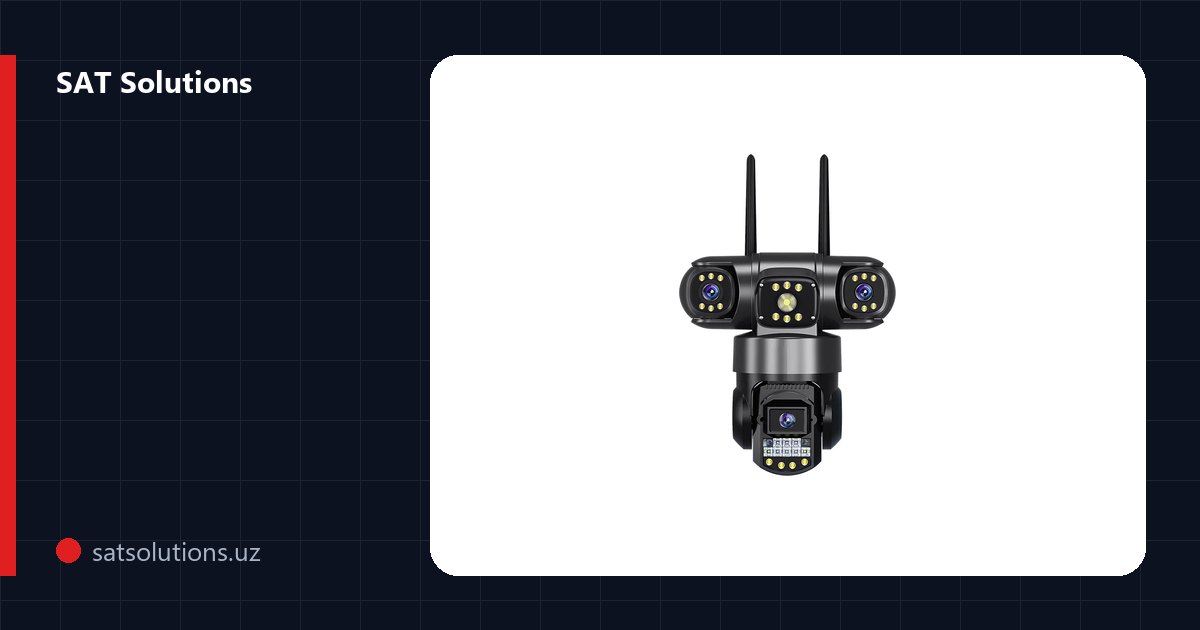
Some V380 models support the ONVIF protocol and can work with a recorder, but this depends on the specific model and firmware — it is worth checking before you buy. The three-lens pan-tilt V380 PRO camera is available in our catalogue, and SAT Solutions designs and installs turnkey video surveillance systems in Tashkent — from a single camera to sites with dozens of points.
FAQ
Is the V380 Pro app free?
Yes, the app is free on the App Store and Google Play. It contains ads and in-app purchases; cloud recording is paid, while recording to a memory card and live viewing work at no cost.
Why won't my V380 camera connect to Wi-Fi?
Most often the router broadcasts 5 GHz or both bands under one name, while the camera works only with 2.4 GHz Wi-Fi. Create a separate 2.4 GHz network, set the camera up next to the router and use the camera hotspot method.
How do I reset the password on a V380 camera?
Hold the Reset button for about 7 seconds on indoor models or about 10 on outdoor ones — the camera returns to factory settings. Then add it to the app again and set a new password.
How do I give a second phone access to a V380 camera?
Open the camera in the app and use the Share function. The other person will see the camera in their own V380 Pro account, and you can revoke access at any time.
What should I do with a V380 camera after changing the router or Wi-Fi password?
Reset the camera with the Reset button and set up the connection again: the camera does not update the old network details on its own.
How can I watch V380 recordings on a computer?
Take the memory card out of the camera, insert it into a card reader and open the files in a video player such as VLC.
Installation works cost calculator
Set the number of points — the calculator lays out a site plan and shows the range from our standard price list. One minute, no phone calls.
Read also




Related services
Catalog on the topic