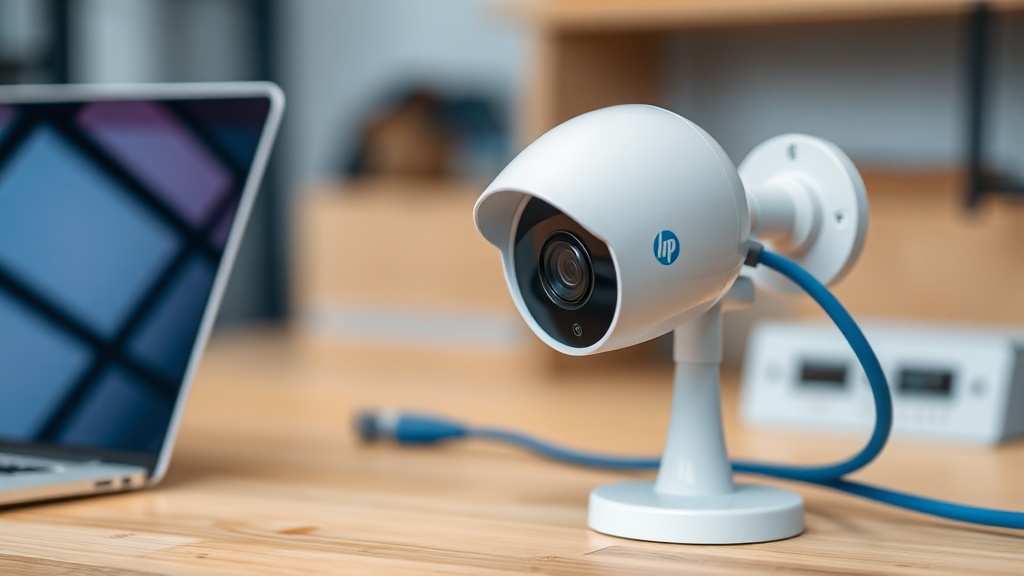
What you'll need
The camera itself, a twisted-pair cable (UTP cat5e or higher), a power source — a PoE switch, PoE injector or a 12 V adapter — and a computer or smartphone for setup. If you have several cameras, go straight for a PoE switch: power and data run over a single cable, with no power outlet needed at each camera.
For setup from a computer, download the free SADP utility from the Hikvision website — it discovers every camera on the network and shows their IP addresses.
Step 1. Cable and power
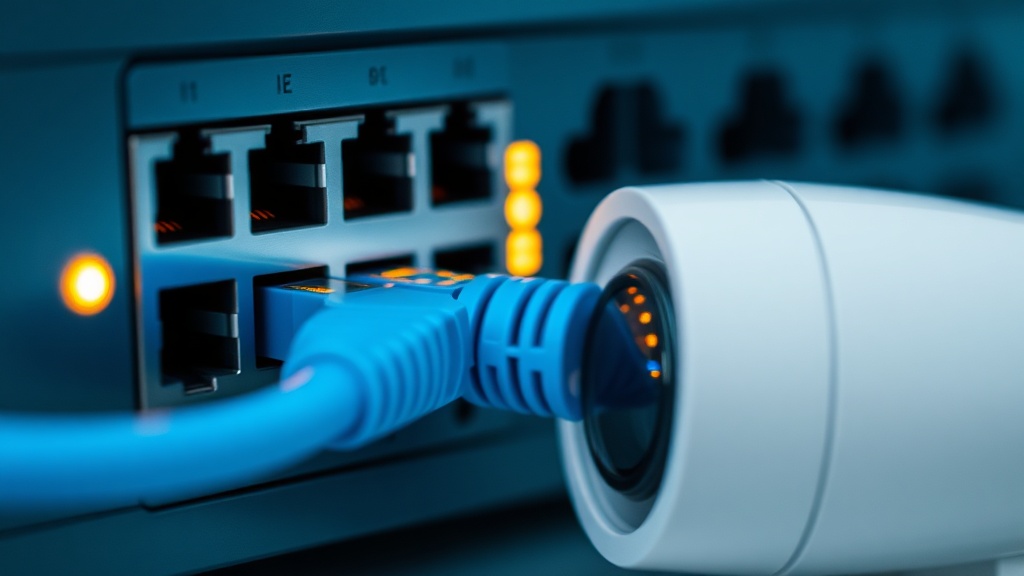
Terminate the twisted pair with RJ45 connectors using the T568B standard on both ends and connect the camera to a PoE port on the switch. The camera boots in 30–60 seconds — the link indicator on the connector starts blinking. The maximum cable run for PoE is 100 meters; for longer distances use PoE extenders or fiber.
If you're powering from a 12 V adapter, watch the polarity and the gauge of the power cable: on long runs the voltage sags, and the camera starts rebooting at night when the IR illumination kicks in.
Step 2. Activation and password
A new Hikvision camera ships inactive: on first power-up it requires you to set an administrator password. Launch SADP, find the camera in the list (status Inactive), select it and set a password — at least 8 characters with letters and digits. You can change the IP address to match your network in the same window.
Store the password somewhere safe. A forgotten password on Hikvision cameras cannot be recovered: either you hold the Reset button for 10 seconds or more — the camera returns to factory defaults, becomes Inactive again and every setting has to be re-entered — or you go to the distributor with the export code from SADP. Neither route is quick.
Step 3. Adding it to your phone (Hik-Connect)
In the camera's web interface (Network → Platform Access), enable the Hik-Connect cloud and set a verification code. Then in the Hik-Connect app on your smartphone, tap the plus button and scan the QR code on the camera housing. Live video appears within a minute — you can watch from anywhere in the world.
If the camera works with a recorder, add the recorder to the app rather than each camera individually — it's simpler and gives you archive access too.
Step 4. Connecting to a recorder
Hikvision cameras join their own NVR almost automatically: plug the camera into the recorder's PoE port — it activates the camera with its own password and brings up the picture. When connecting through an external switch, open the recorder menu Camera → Add, find the camera via search and enter its password.
A recorder from another brand works too — via the ONVIF protocol — but proprietary features (smart analytics, accurate detection) may not work in full.
Typical mistakes
The camera "can't be found" — most often it sits in a different subnet: the computer is on 192.168.1.x while the camera's factory address is 192.168.1.64, but the router hands out 192.168.0.x. The fix is changing the IP via SADP. The second most common mistake is a poorly crimped cable: the link comes and goes, and the camera keeps rebooting.
Most importantly: don't leave cameras exposed to the internet with factory settings and outdated firmware — those are exactly the devices that end up in botnets. If you'd rather not deal with any of this, we'll connect and configure everything turnkey, with an installation warranty.
FAQ
What cable does an IP camera need?
Twisted pair, UTP cat5e or cat6. Outdoors — outdoor-rated cable or conduit; for runs over 100 m, a PoE extender or fiber with media converters.
Can I connect a camera without a recorder?
Yes: the camera records to a memory card and to the cloud, and you watch via Hik-Connect. A recorder is needed when you have several cameras and want a long local archive.
Why doesn't SADP see the camera?
Make sure the computer and the camera are on the same local network, disable VPN and firewall, and check the link indicator on the connector. Connecting the camera directly to the computer often helps.
What if I forgot the camera password?
On most models — hold the Reset button for 10 seconds or more: the camera returns to factory defaults and goes to the Inactive state, a new password is set during re-activation, but the whole configuration is lost. If there is no button, the password is reset through an export code in SADP and the authorised Hikvision distributor.
Installation works cost calculator
Set the number of points — the calculator lays out a site plan and shows the range from our standard price list. One minute, no phone calls.
Read also
Related services
Catalog on the topic